
Step 01
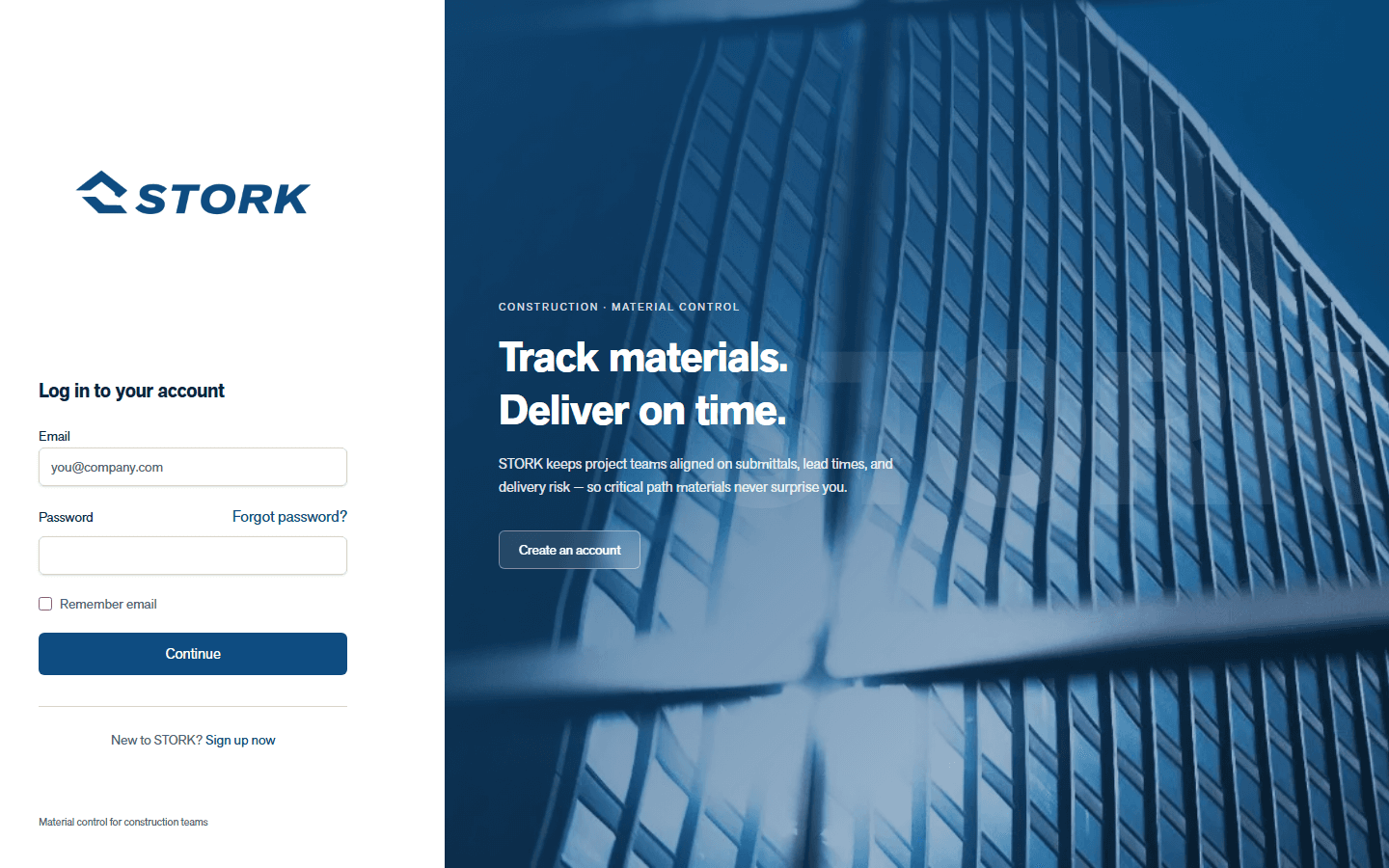
Sign in with your work email
Create your account with your work email, then open the dashboard. If you already received an invite, use that link instead — you’ll join the right project automatically.
Startup Guide
Work through each step yourself — open an account, create the job, build the material register, and invite the people who keep status current.

Step 01
Create your account with your work email, then open the dashboard. If you already received an invite, use that link instead — you’ll join the right project automatically.
Step 02
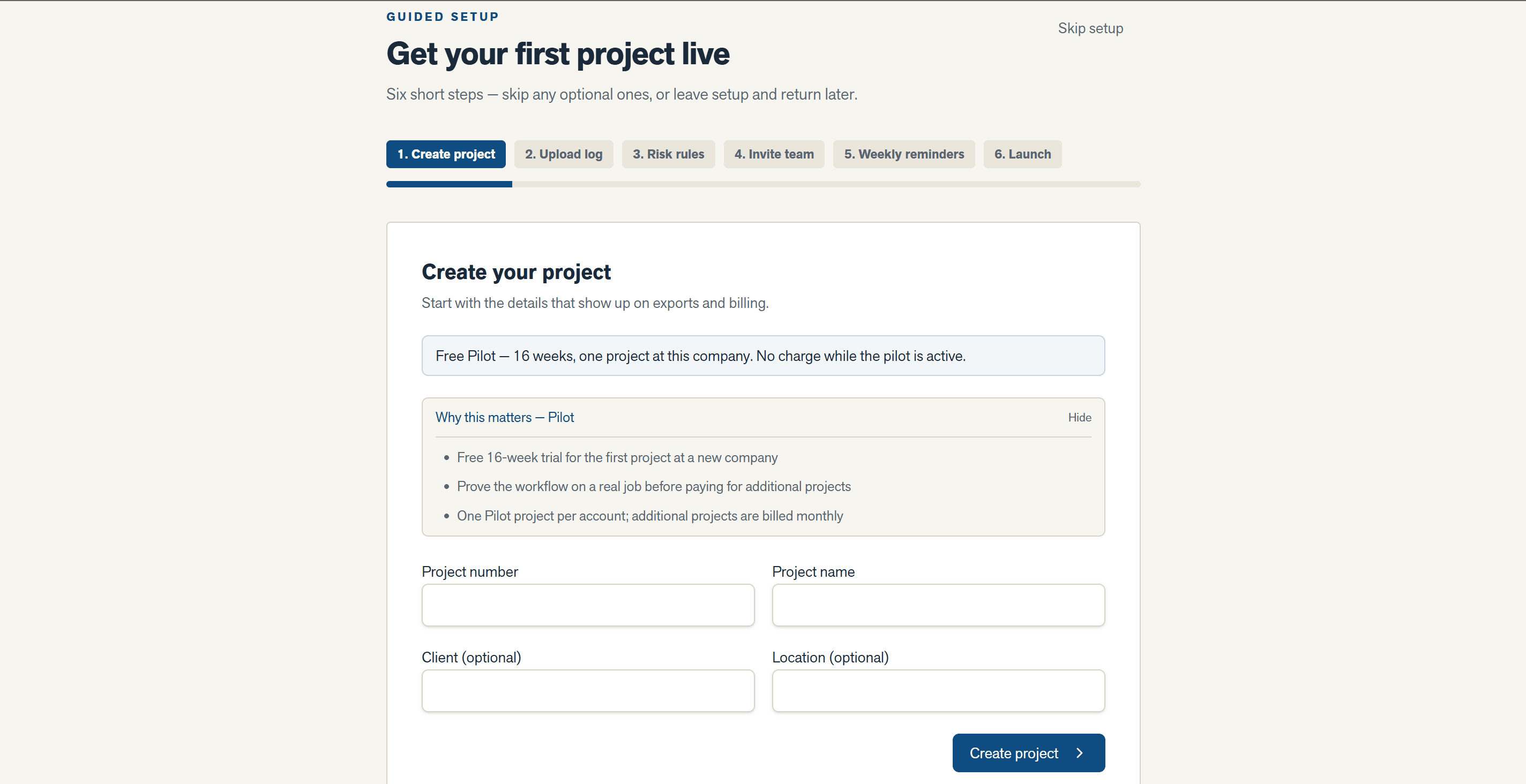
From the dashboard, choose New Project. Enter the company project number and name first — those appear on exports and billing. Add client, location, and substantial completion now, or finish them later in Project Settings.
Step 03
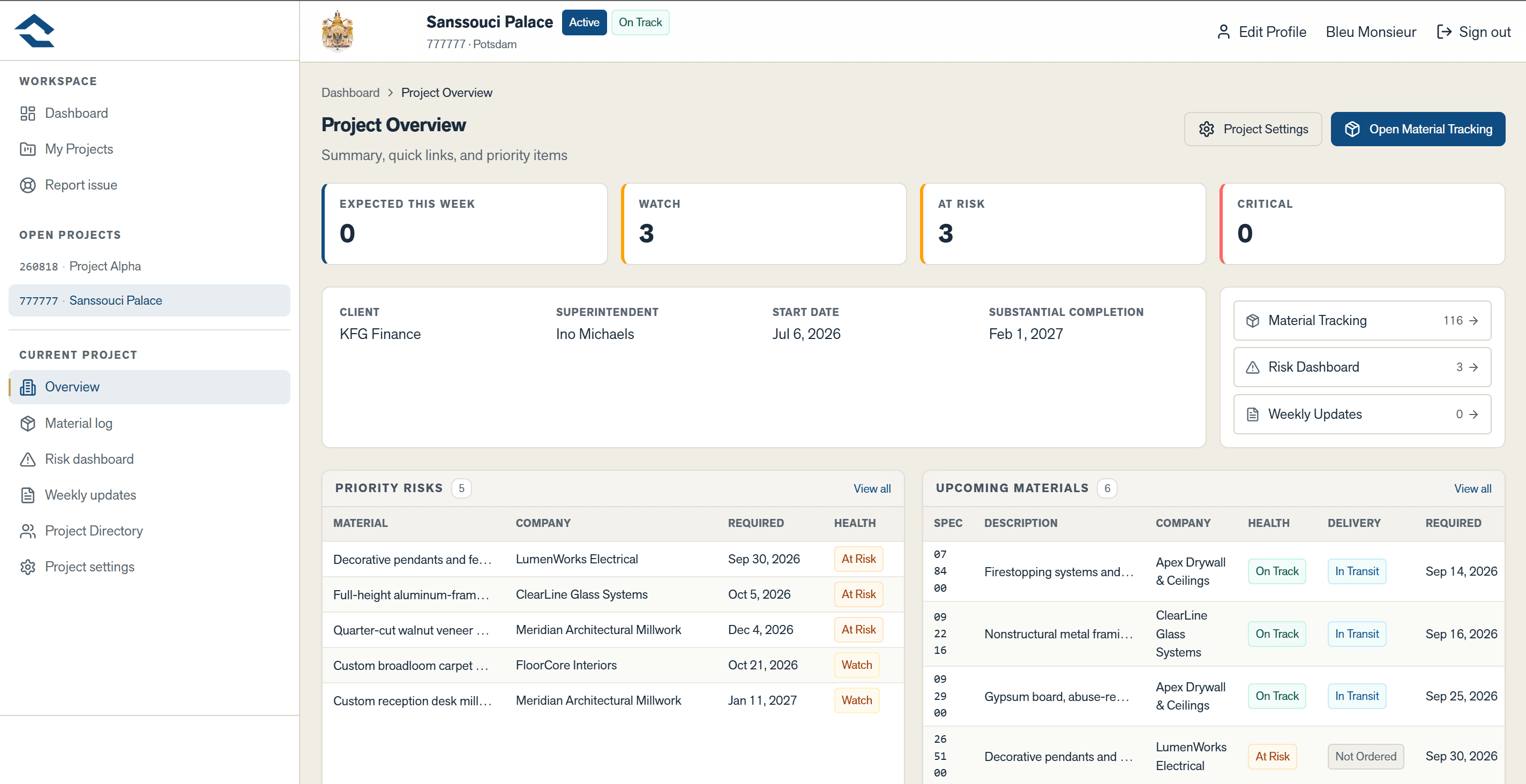
You’ll see your open projects and portfolio risk in one place. Open a job, go straight to material tracking, or — once you’re on Pro — start another project without leaving the portfolio view.
Step 04
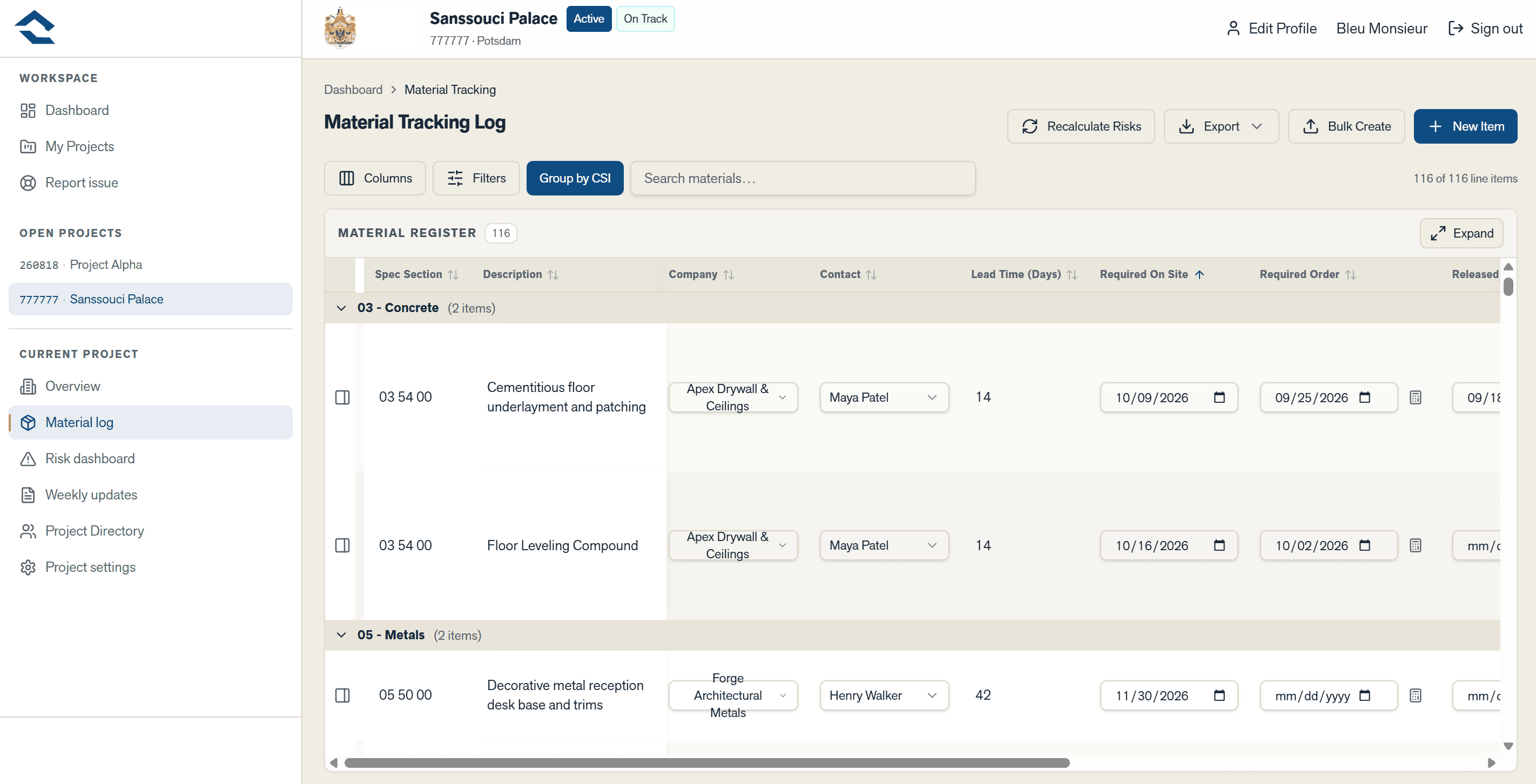
Open Material Tracking and add line items — or import them. Set responsible companies and contacts, then keep fabrication and delivery status current. As an editor you own the full register; contributors update delivery-related fields so status stays accurate without losing control of the list.
Step 05
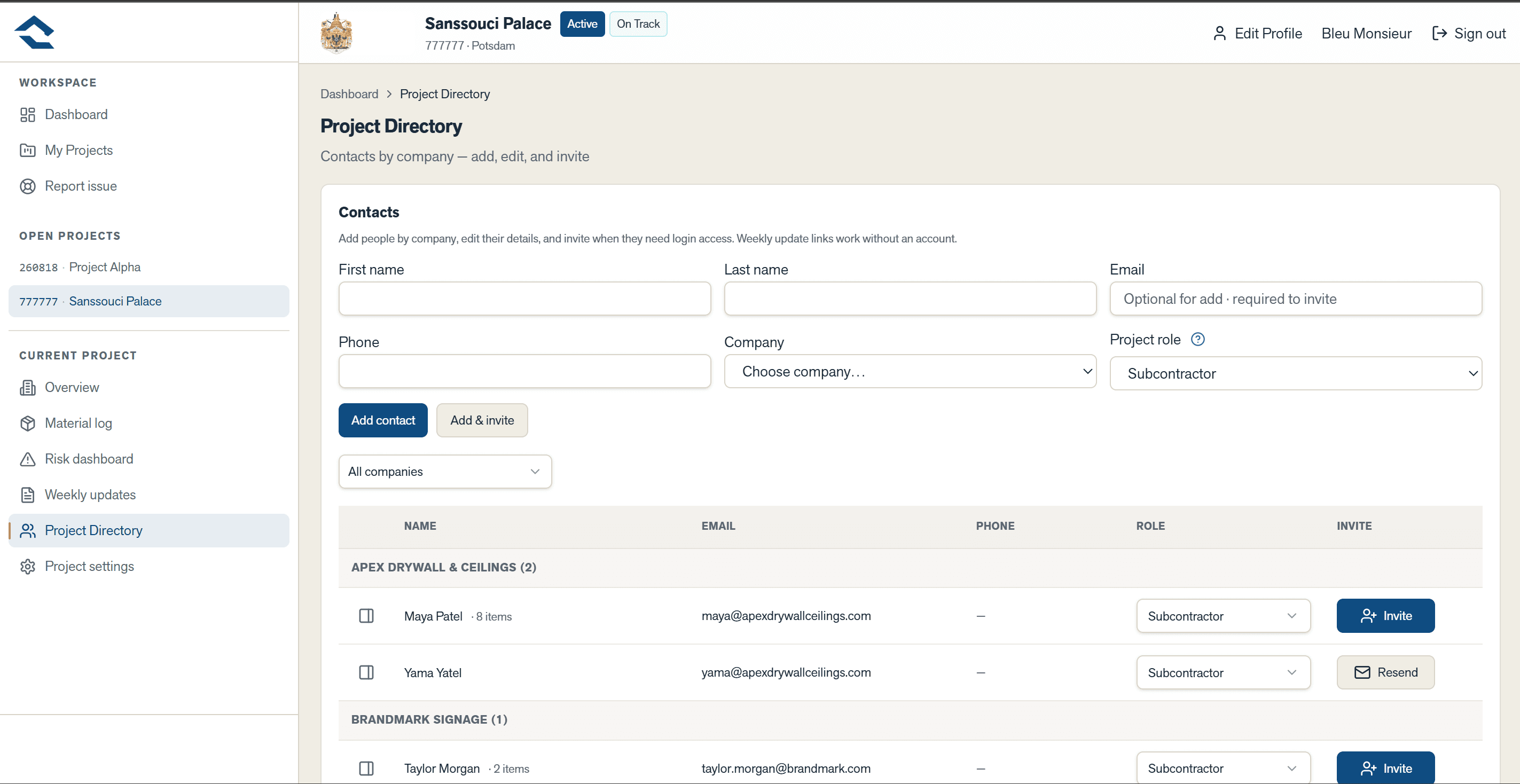
From Team, invite PMs, supers, admins, and contributors. Admins and project managers can invite others. Invite field users as Contributors so they can update status without rewriting the register — each person owns the part of the work they’re responsible for.
FAQ
From first invite to closeout — what the team does, who owns what, and what happens to the register.
Starting out
Monday morning used to mean hunting status across spreadsheets, texts, and inboxes. STORK is the single source of truth for material procurement on a construction project. General contractors and trade partners work from one live register — status, dates, risk, and delivery proof — so every stakeholder knows who owns the next step and can be held accountable for it.
Someone has to open the job. Usually a GC project manager or admin creates the project and invites the rest of the team. Once others are on the project, multiple admins, PMs, and supers can help manage invites.
Before you commit a whole portfolio, try STORK on one real job. New accounts get one free Pilot project for 16 weeks. After that, upgrade to Pro to keep editing, or close the project into archives. Only one free Pilot is available per account.
Running the job
Instead of another email chain, send a secure weekly update link that does not require a full STORK login — or invite trade partners as contributors so they can update delivery-related fields in the app. They cannot add new register rows or invite users.
“Delivered” should mean more than a checkbox. Photos attach to material items and can be required before marking items delivered or received, unless a project admin turns that requirement off in settings.
Yes. Before OAC or an owner review, editors can export CSV, Excel, and print-ready PDF views of the filtered register — so the room works from the same list you use every day.
Risk
The badge next to the project name (On Track, Watch, At Risk, or Critical) is a project-level health score. It is separate from the project lifecycle status such as Active. It rolls up open materials — it is not simply the worst single item. Materials marked Watch do not count toward the At Risk & Critical total used for this badge.
| Overall status | When |
|---|---|
| Critical | More than 5 materials with delayed fabrication, or more than 15 At Risk & Critical materials |
| At Risk | More than 8 At Risk & Critical materials, or more than 2 with delayed fabrication |
| Watch | More than 3 At Risk & Critical materials, or any material with delayed fabrication |
| On Track | Otherwise |
Open the Risk dashboard. Overall project risk explains the current badge in plain language. Needs Attention Now lists the items to act on next.
Wrapping up
When the project is done, the register becomes read-only immediately. The team can still view exports and history. Billing for paid projects stops at the end of the current billing period, and you’ll see that end date when you confirm close.
Your project data lives in a secure, private database used only for STORK. Photos and logos sit in protected file storage so only people on your project can reach them.
With the register in place, you can settle into the weekly rhythm: request updates, bring the same list into meetings, and know what happens when the job closes.